Navigating through Doneify is now easier than ever with our comprehensive App Guide. Whether you’re a new user looking to get started or a seasoned pro wanting to explore advanced features, this guide is your go-to resource.
Adding Tasks:
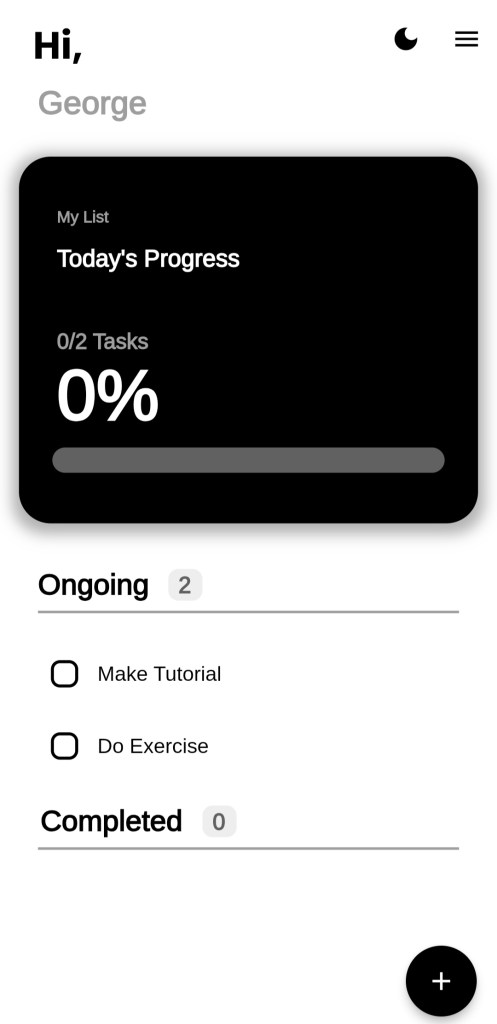
Tap the ‘+’ icon at the bottom right to add tasks.
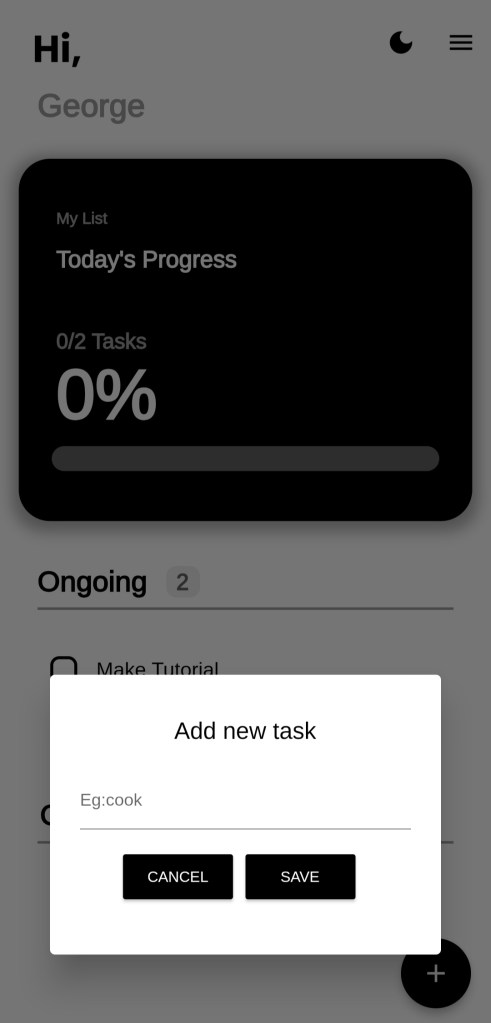
Task Entry Dialog:
Upon clicking the icon, a dialog box will open, as shown in the image. In the box, add your task and hit the save button.
Marking Tasks as Completed:
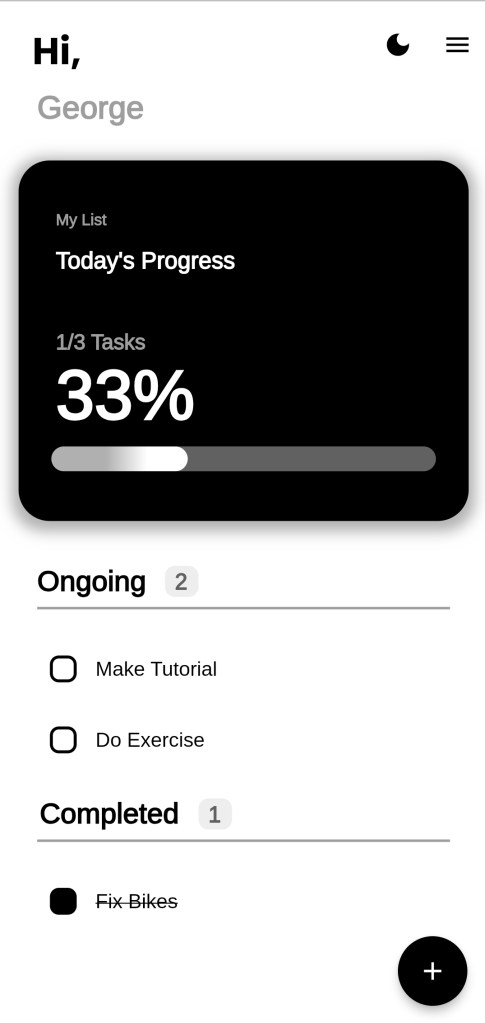
If a task is completed, click the checkbox located on the left side of the task to mark it as completed.
Deleting Tasks:
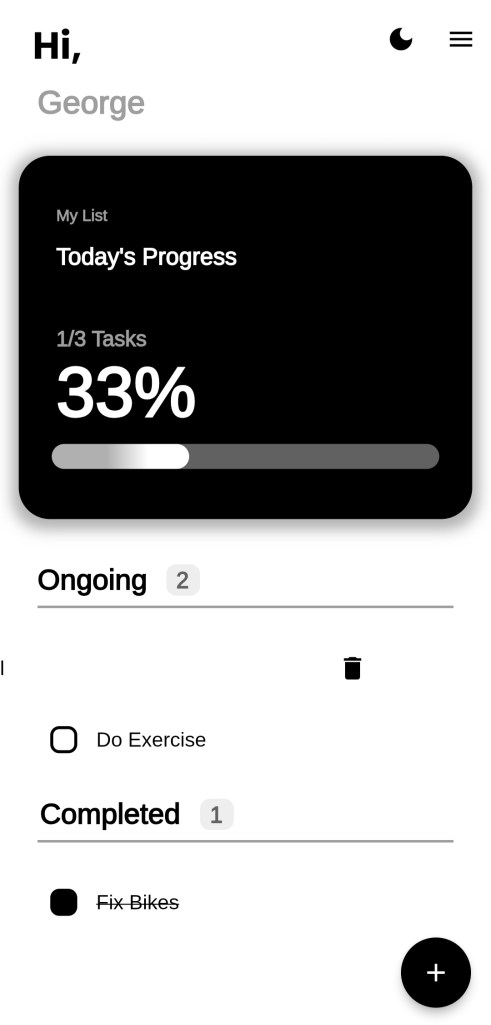
To delete a task, swipe the task to the right, and you will see a delete icon. Tap that icon to delete your task.
Setting Task Notifications:
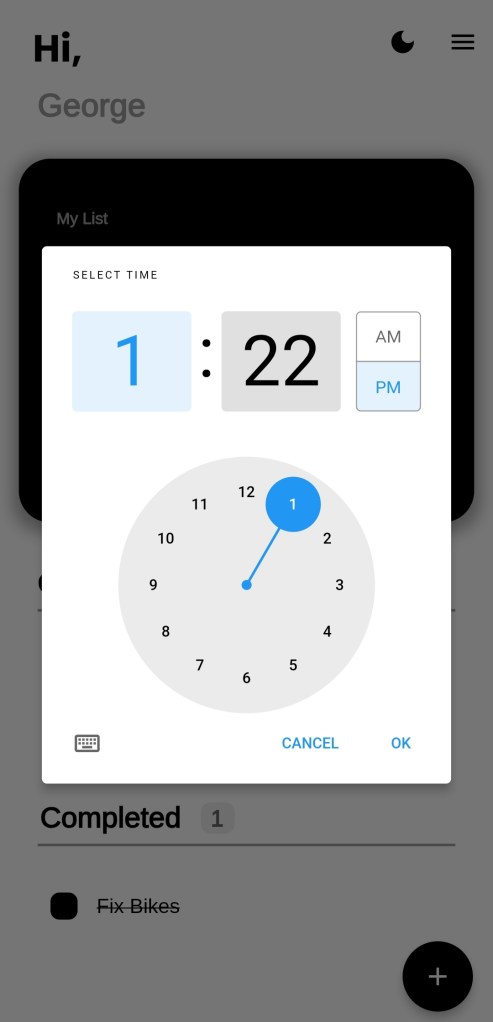
To set a reminder for a task at your desired time, long-press the task. You will see a timer icon, tap that to set a notification for the task.
Notification Confirmation:
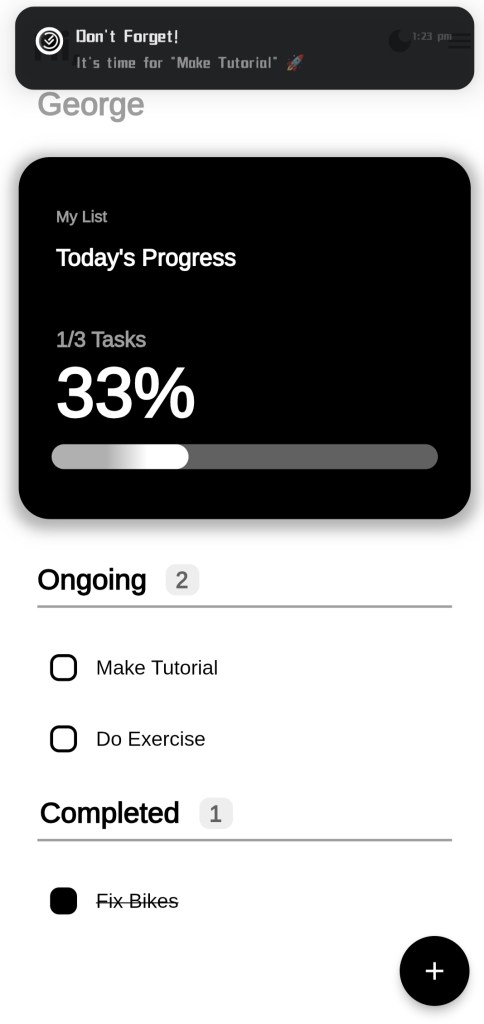
When you set a notification for a task, you will receive a notification with the task name, as shown in the image.
Additional Features:
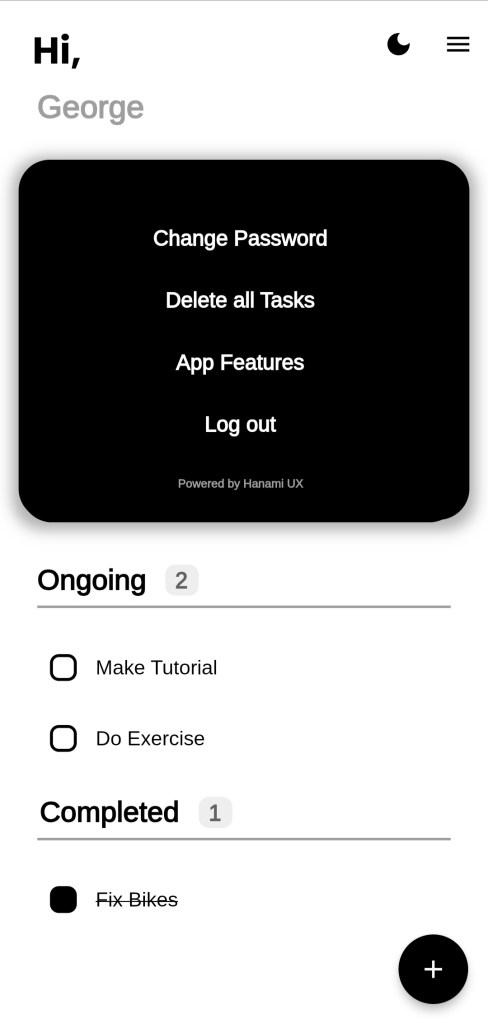
Doneify also offers features like changing themes and deleting all tasks, among others. If you encounter any issues while using our app, feel free to contact us by clicking the third option on the menu bar.
 Doneify